





Launch X431 X-PROG3 PC Adapter (for ECU Programming & Cloning in Windows)
R3900,00
Out of stock
Launch X431 ECU Programmer & Cloner Windows PC Adapter for X-PROG3 Programmer
X-Prog3 PC Adaptor Features:
2. 2D menu, clear and easy to choose
3. Powerful search function
4. Convenient modification of ECU data
5. USB communication, with a speed more than three times that of Android devices, making it more stable
6. Easy to copy data
7. Support engine data validation function
8. Launch XPROG3 PC Adapter PC Tools Software download
Drop down and click “Download”
Software language: English, German, Japanese, Russian, French, Portuguese, Korean, Italian, Arabic, Traditional Chinese
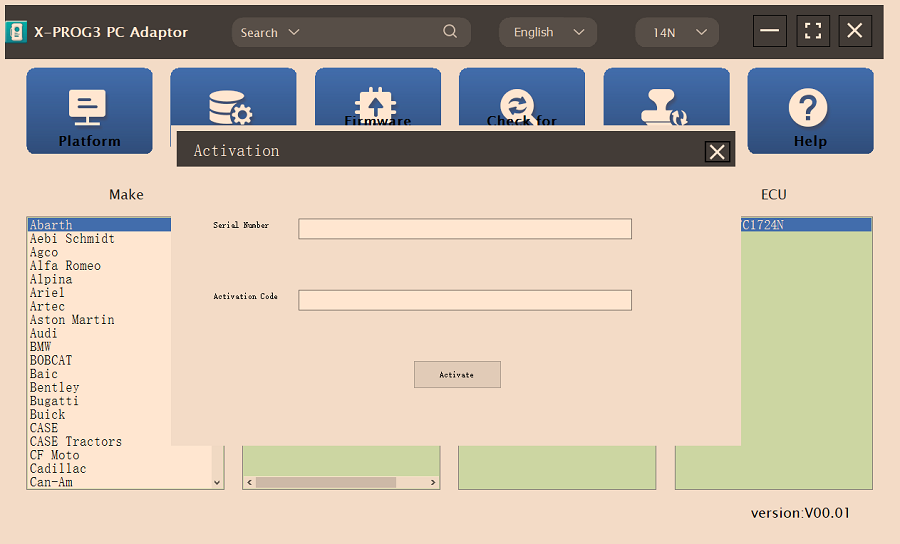
Select the corresponding language setup to install.XPROG3 PC Software Interface Description:Firstly, connect the X-PRO G3 PC ADAPTOR to the computer using a cable, and then connect the X-PROG3 PC ADAPTOR to G3. Secondly, click to enter the software (without connecting the X-PROG3 PC ADAPTOR and G3, the software cannot be accessed). The serial number will be automatically recognized from the X-PROG3 PC ADAPTOR. The activation code needs to be obtained from the envelope of the X-PROG3 PC ADAPTOR. Thirdly, click [Activation] (only once, no need to activate it again later), as shown in Figure 1
 I.ECU Data Reading/Writing
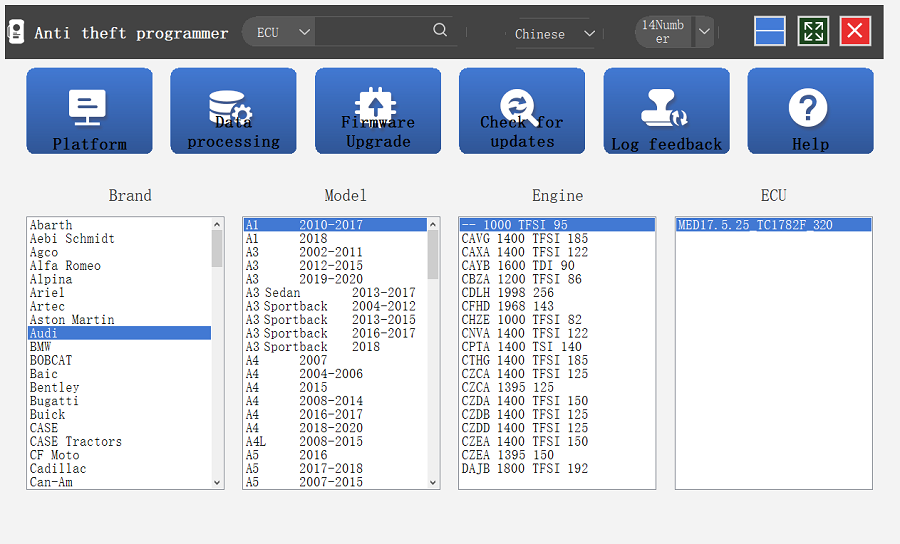
1. Obtain the related ECU.(1) Method 1: Obtain the desired ECU type through brand > model > engine > ECU in turn, as shown in Figure 2.
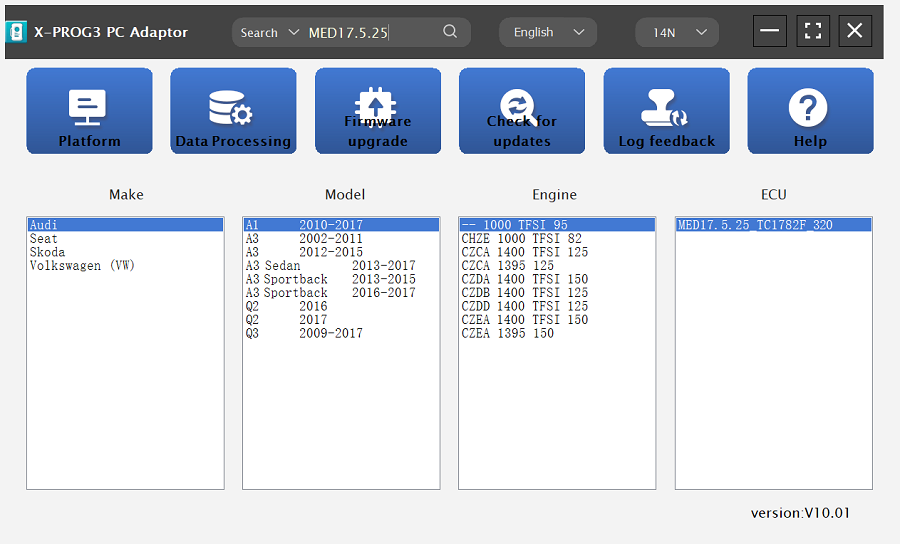
(2) Method 2: Query the desired ECU by entering a value in the search box. The search categories include brand, Bosch number and ECU type. For example, search for the MED17.5.25 engine by ECU type, as shown in Figure 3.
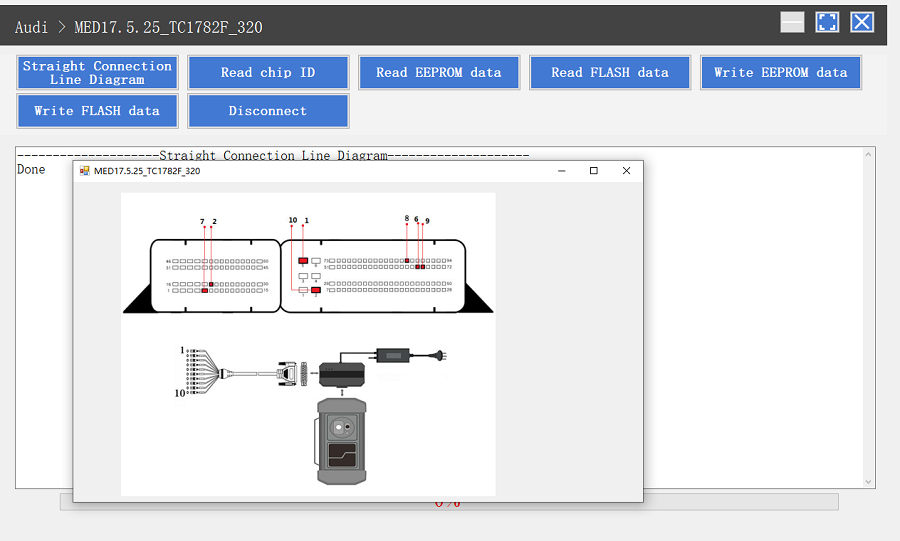
2. Click [Straight Connection Line Diagram] to obtain the ECU connection diagram, as shown in Figure 4.
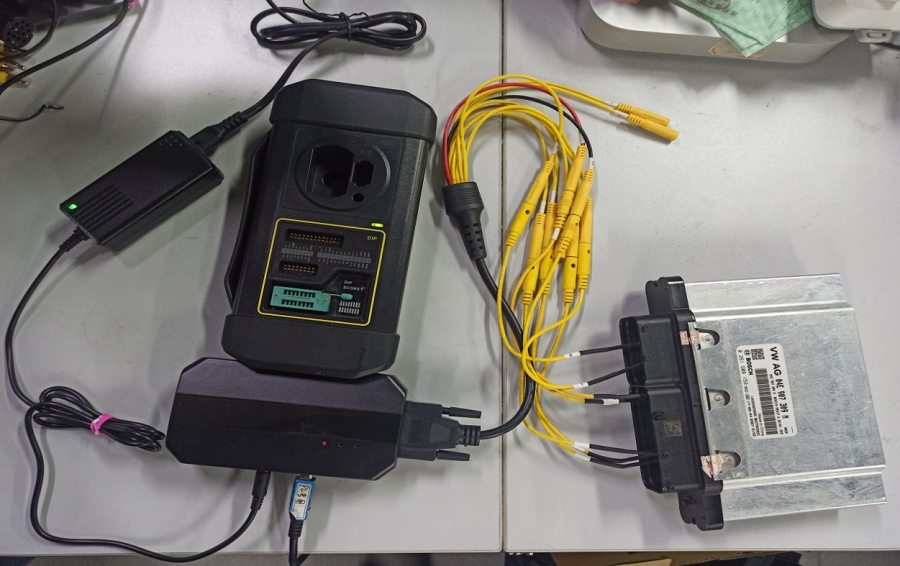
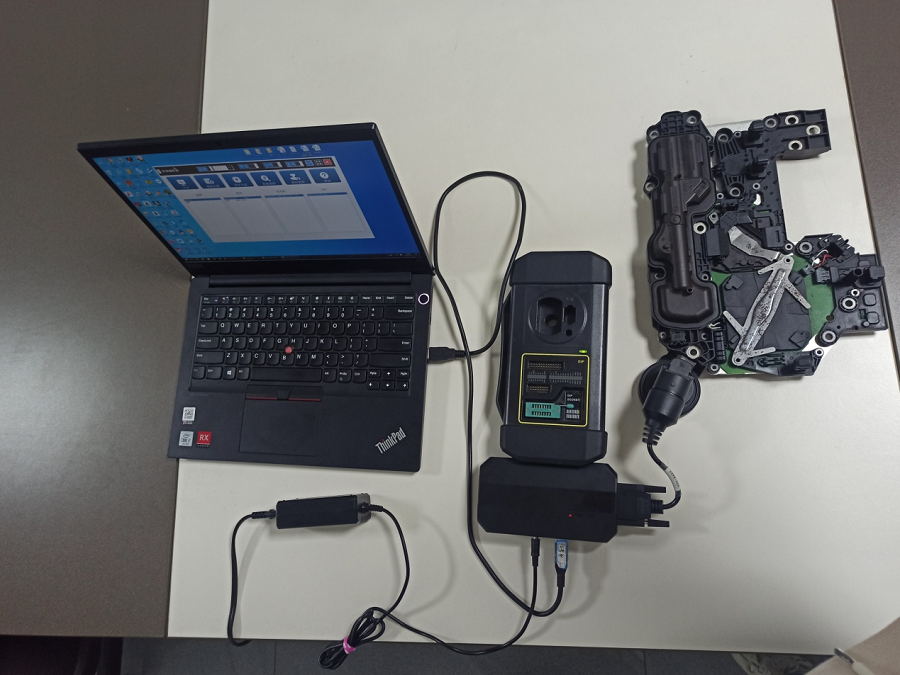
3. Connection: Connect the ECU and PCBOX according to the information provided in the connection diagram. The physical connection diagram of MED17.5.25 (using the BENCH mode line) is shown in Figure 5, and the physical connection diagram using the gearbox adapter is shown in Figure 6.
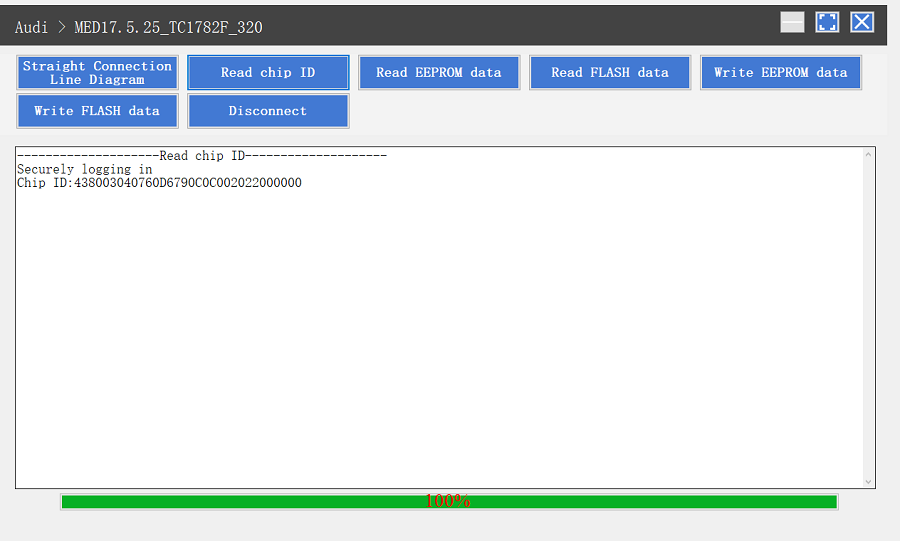
4. Read the chip ID, as shown in Figure 7.
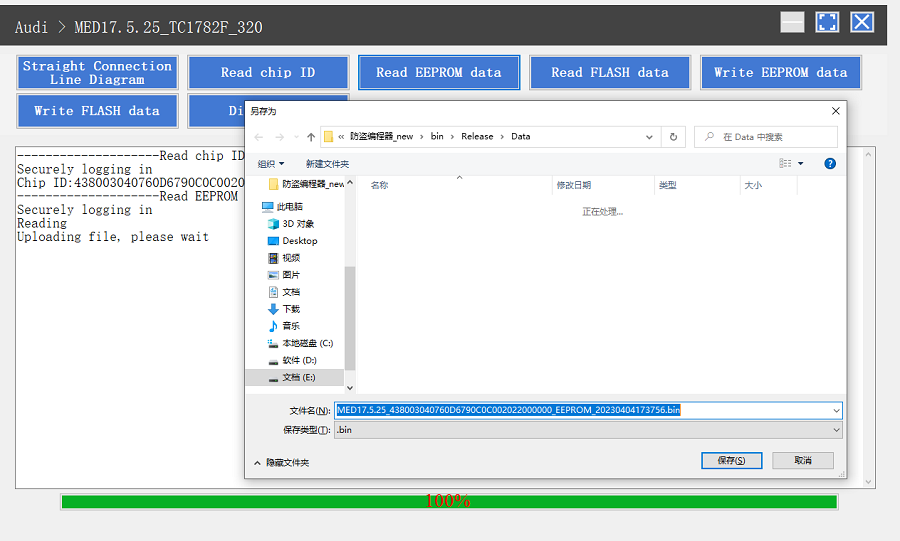
5. Back up the EEPROM data and save it, as shown in Figure 8 (the figure shows the save page of the read data).
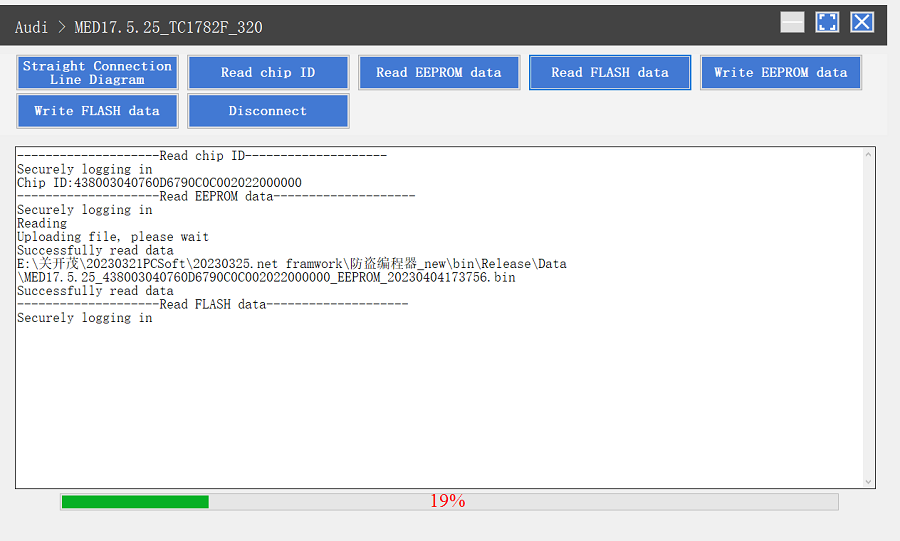
6. Back up the FLASH data and save it, as shown in Figure 9 (the figure shows the process of reading FLASH data).
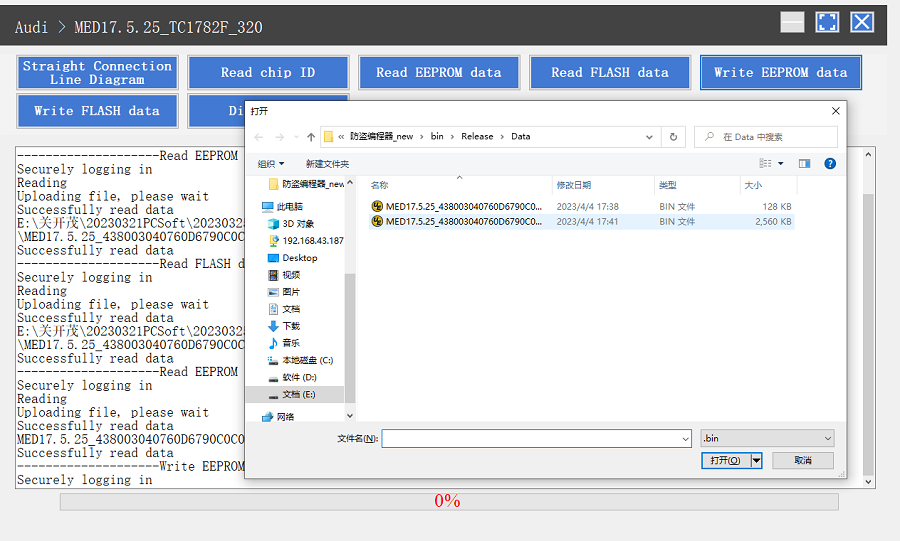
7. Restore EEPROM/FLASH data, as shown in Figure 10 (the figure shows the file selection page).
II. Data Processing
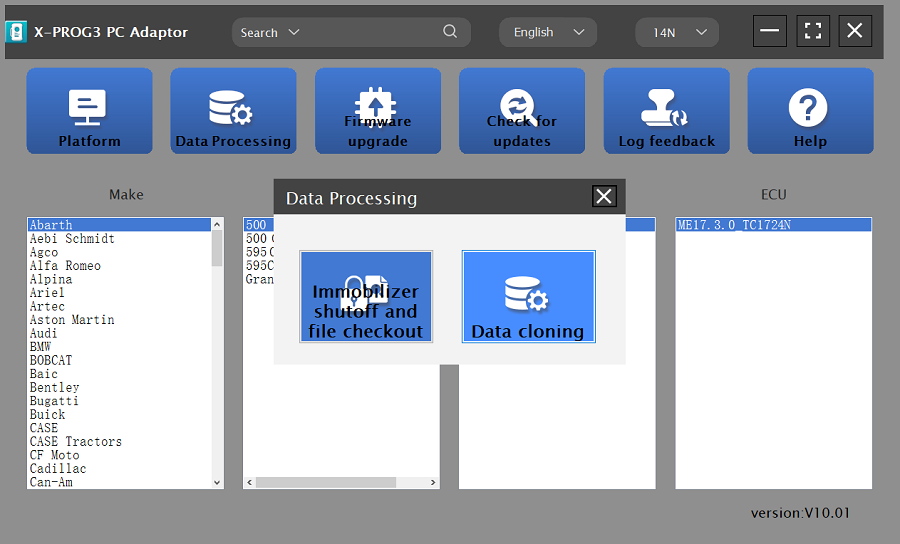
1. Click the [Data Processing] button on the main page, as shown in Figure 11, and select [Immobilizer Shutoff and File Checkout] [Data Cloning] process Volkswagen series and Porsche engine data, as shown in Figure 12.
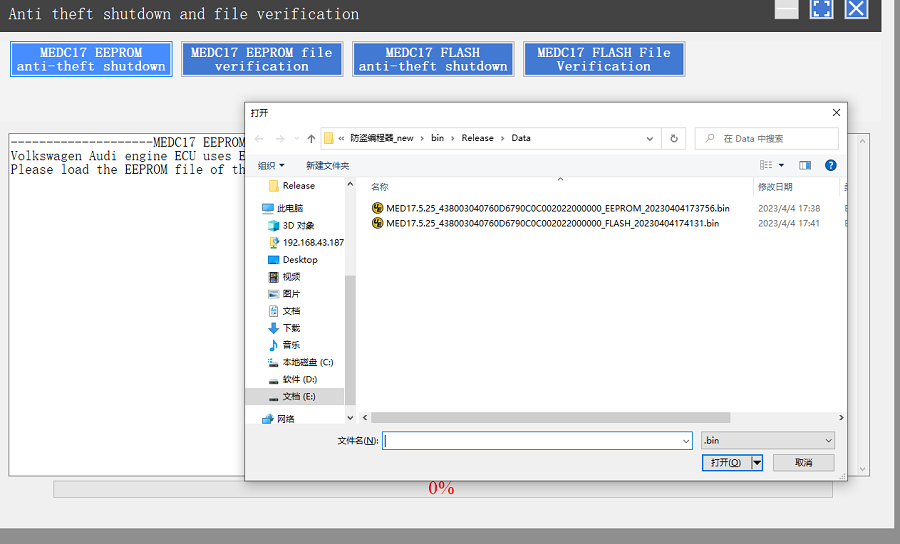
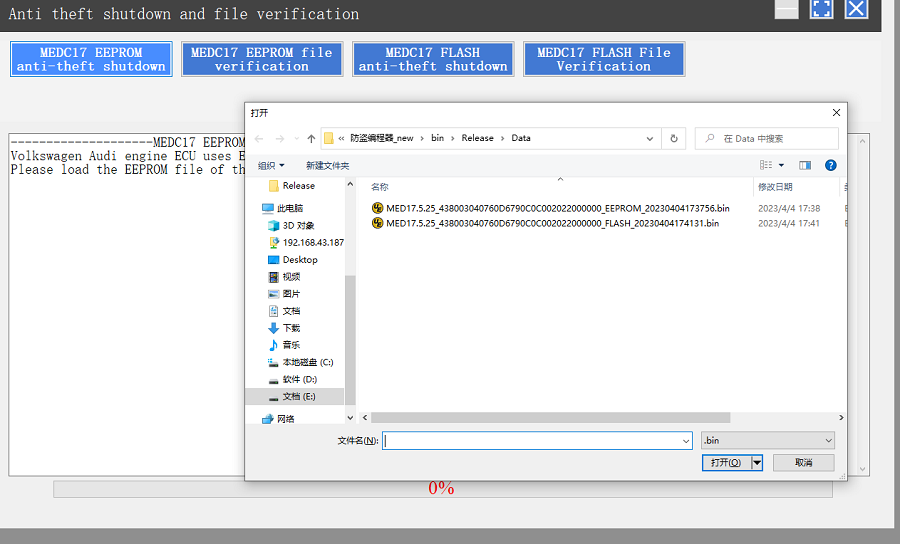
2. File verification and anti-theft shutdown (process: select file > connect network to obtain > save file), as shown in Figure 13.
Support list June 2023:
| ECU Name | ECU Type | ECU Brand | G3 | FLEX |
| EDC16XX | ECM | Bosch | Support | Support |
| EDC17XX | ECM | Bosch | Support | Support |
| MD1CSXXX | ECM | Bosch | Support | Support |
| MD1CPXXX | ECM | Bosch | Support | Support |
| ME17.X.X | ECM | Bosch | Support | Support |
| MED17.X.X | ECM | Bosch | Support | Support |
| MED9.X.X | ECM | Bosch | Support | Support |
| MEV17.X.X | ECM | Bosch | Support | Support |
| MEVD17.X.X | ECM | Bosch | Support | Support |
| MG1CSXXX | ECM | Bosch | Support | Support |
| MG1CPXXX | ECM | Bosch | Support | Support |
| MSDXX | ECM | CONTINENTAL/SIEMENS | Support | Support |
| MSVXX | ECM | CONTINENTAL/SIEMENS | Support | Support |
| SDIX | ECM | Continental | Support | Support |
| GM EXX/TXX | ECM | DELCO | Support | Support |
| SIM271XX | ECM | Continental | Support | Support |
| SIMOS12.X | ECM | Continental | Not support | Support |
| SIMOS8.X | ECM | Continental | Support | Support |
| SIMOS-PCR2.X | ECM | Continental | Not support | Support |
| 6HPXX | TCM | ZF | Support | Support |
| 8HPXX | TCM | ZF | Support | Support |
| 7DCT300 | TCM | ZF | Support | Support |
| 9G Tronic | TCM | Bosch | Support | Support |
| ALXXX | TCM | ZF | Support | Support |
| TCXX | TCM | Bosch | Support | Support |
| DPS6/DC4 | TCM | GETRAG | Support | Support |
| DKG | TCM | GETRAG | Support | Support |
| DLXXX | TCM | Temic | Support | Support |
| DQXXX | TCM | Temic | Support | Support |
| MPS6 | TCM | GETRAG | Support | Support |
| SPS6 | TCM | GETRAG | Support | Support |
| VGSX | TCM | GETRAG | Support | Support |
| VL381 | TCM | Temic | Support | Support |
| GM 6TXX/6LXX | TCM | DELCO | Support | Support |
| MEDG17.9.8 | TCM | Bosch | Support | Support |
| MEG17.9.2 | TCM | Bosch | Support | Support |
You must be logged in to post a review.
SHIPPING & DELIVERY

Orders are shipping by The Courier Guy to any address within South Africa. Shipping cost includes insurance up to R1000 unless specified otherwise. Or You can select to have orders delivered by means of Courier or you can select to collect your order from our premises in Cape Town.
DELIVERY TIMES
- Shipping within Cape Town typically take working day
- Shipping to major centres typically take 1 – 2 working days.
- Shipping to smaller centres typically take 3 – 4 working days.
- Shipping to outlying areas typically take 4 – 5 working days.
SHIPPING RATES
- National Economy Road Freight up to 15Kg - R86.25 (R75 + VAT)
- National Overnight Courier up to 2kg - R132.25 (R115 + VAT)
- National Overnight Courier over 2kg add R40 per extra 1kg
- Cape Town Overnight Courier - R74.75 (R65 + VAT)







Reviews
There are no reviews yet.